



MCP客户端入门使用教程之Cursor安装配置(未验证)
为大家带来一篇详细的MCP客户端入门使用教程,重点介绍Cursor编辑器的安装与MCP服务的配置过程。通过本教程,您将了解如何快速设置Cursor并将其连接到MCP服务器,以充分利用AI辅助编程的强大功能。
一、MCP简介
MCP(Model Context Protocol)是由Anthropic(Claude母公司)于2024年11月推出的开放标准协议,它为开发者提供了一个强大的工具,能够在数据源和AI驱动工具之间建立安全的双向连接。
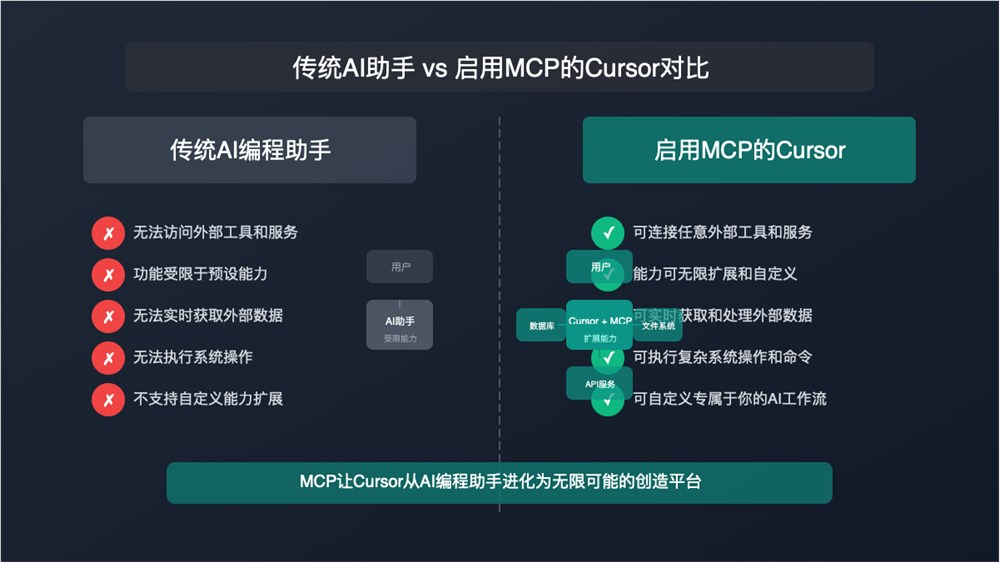
简单来说,如果将AI比作一台只能处理文字的智能设备,那么MCP就像给它装上了"万能插头",让它能直接读取你的电脑文件、查询数据库,甚至操作GitHub提交代码,以及调用各种第三方平台等功能。
目前,MCP已被Claude桌面端、Cline、Continue、Cursor、Windsurf等多款AI工具广泛应用。
二、Cursor安装步骤
1. 下载Cursor
首先,我们需要从Cursor官网下载最新版本的软件。
- 访问Cursor官方网站:https://www.cursor.com/cn/downloads
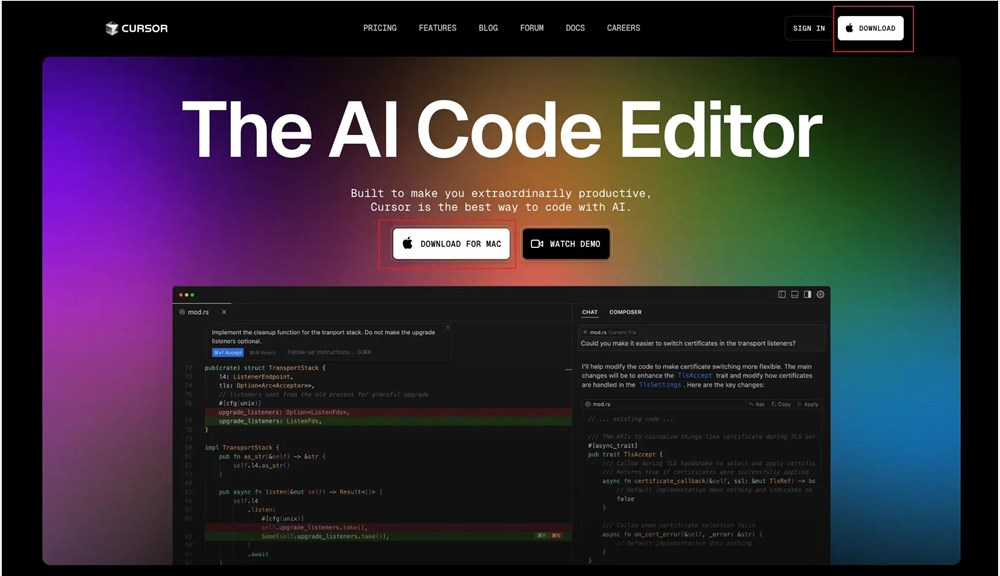
- 根据您的操作系统选择对应的版本进行下载:
- Windows用户:选择"Windows10/11(x64)"
- Mac用户:根据处理器选择对应版本(Universal/Arm64/x64)
- Linux用户:选择.AppImage对应版本
2. 安装Cursor
Windows安装步骤:
- 双击下载的安装文件(通常是.exe格式)
- 等待安装程序自动完成安装过程(Cursor通常不需要选择安装目录)
- 安装完成后,Cursor会自动启动并显示配置界面
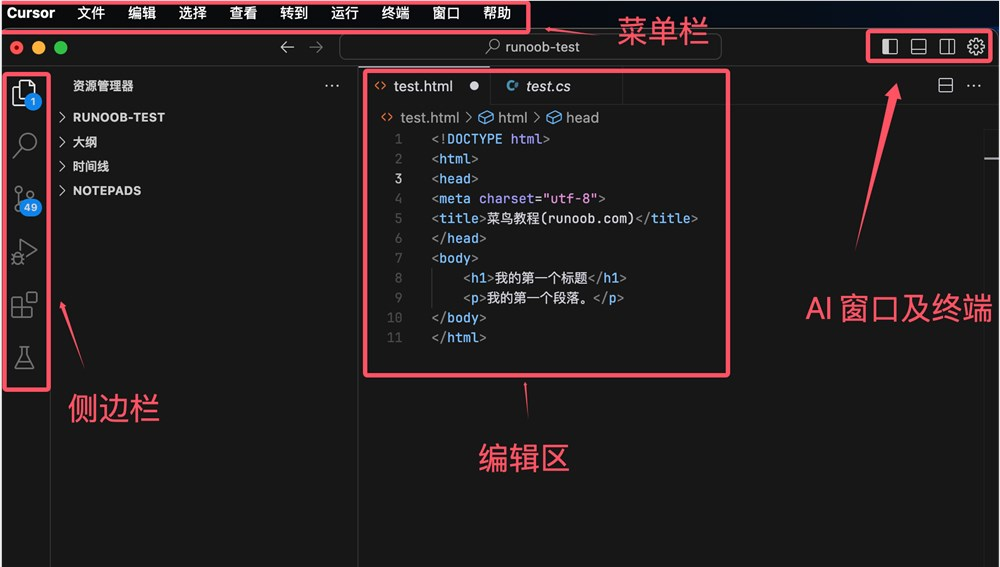
Mac安装步骤:
- 打开下载的.dmg文件
- 将Cursor应用拖入Applications文件夹
- 在应用程序中找到并启动Cursor
3. 初始配置
首次启动Cursor时,需要进行以下基础配置:
- 键盘布局选择:根据个人习惯选择Vim或Emacs布局,如果不熟悉可选择默认的"None"
- 主题选择:选择明亮或暗色主题
- 隐私设置:如何不希望分享数据给Cursor,可以选择Privacy Mode
- 登录账户:使用GitHub、Google或邮箱创建/登录Cursor账户
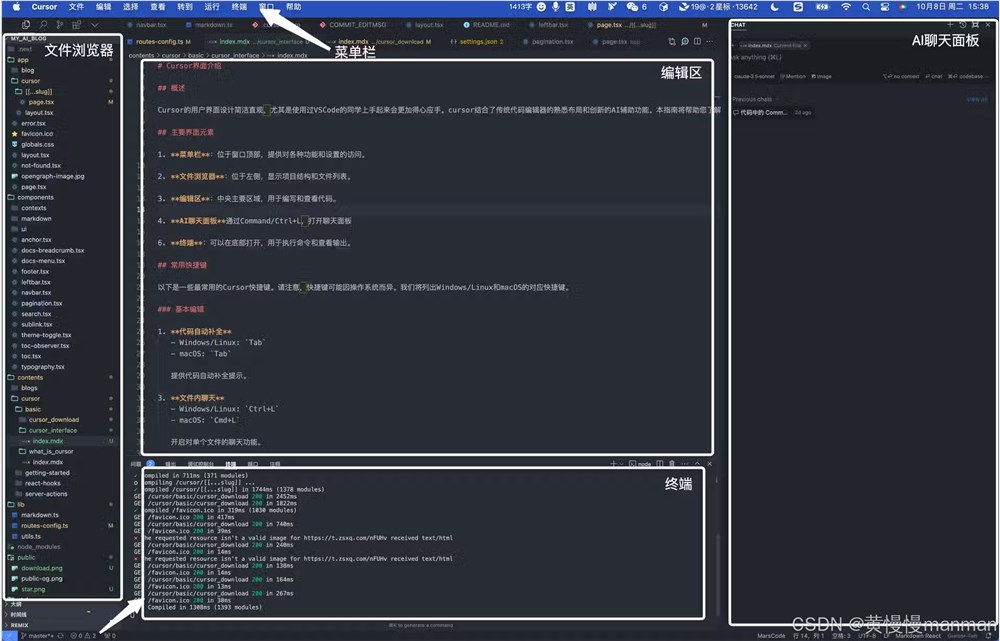
4. 中文界面设置(可选)
如果希望使用中文界面,可以按照以下步骤操作:
- 打开Cursor后,点击左下角齿轮图标打开设置
- 在搜索框中输入"language"
- 在"Configure Display Language"下选择"zh-cn"
- 点击"Restart"重启Cursor应用
三、MCP配置步骤
要在Cursor中使用MCP功能,需要先完成MCP服务器的配置。以下是详细步骤:
1. 基础环境准备
在配置MCP之前,确保您的系统中已安装以下组件:
- Node.js:版本≥14(验证方法:在命令行中输入
node -v查看版本号) - Git:最新稳定版本
- Python:部分MCP服务需要Python3.10或更高版本(可选)
2. 访问Cursor MCP设置
打开Cursor设置,可以通过以下两种方式:
- 点击左下角齿轮图标
- 使用快捷键
Ctrl+Shift+P(Windows/Linux)或Cmd+Shift+P(Mac)打开命令面板,搜索"Cursor Settings"
在左侧菜单中找到并点击"Features" > “MCP”
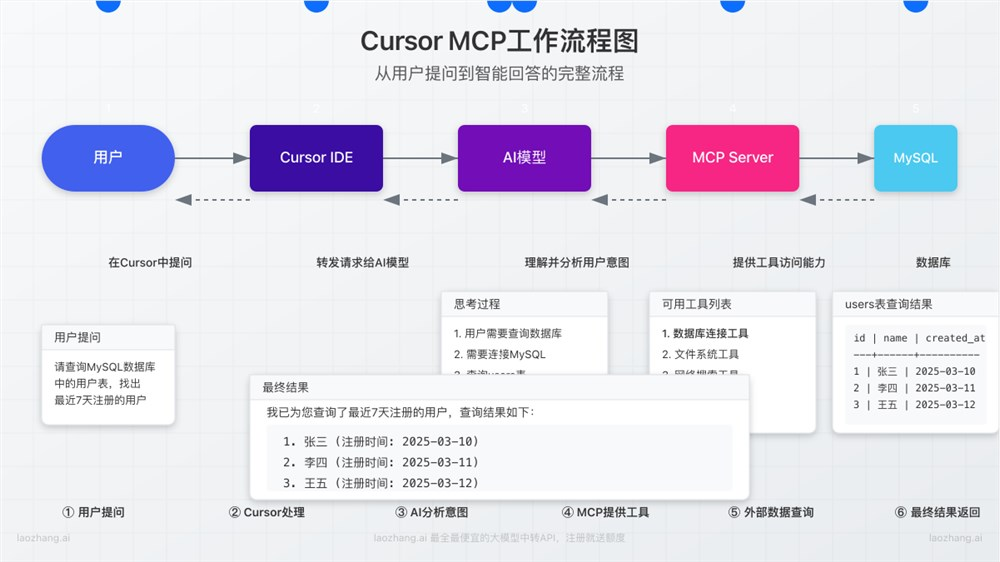
3. 添加MCP服务器
在MCP设置页面,点击"+ Add New MCP Server"按钮,将出现配置窗口: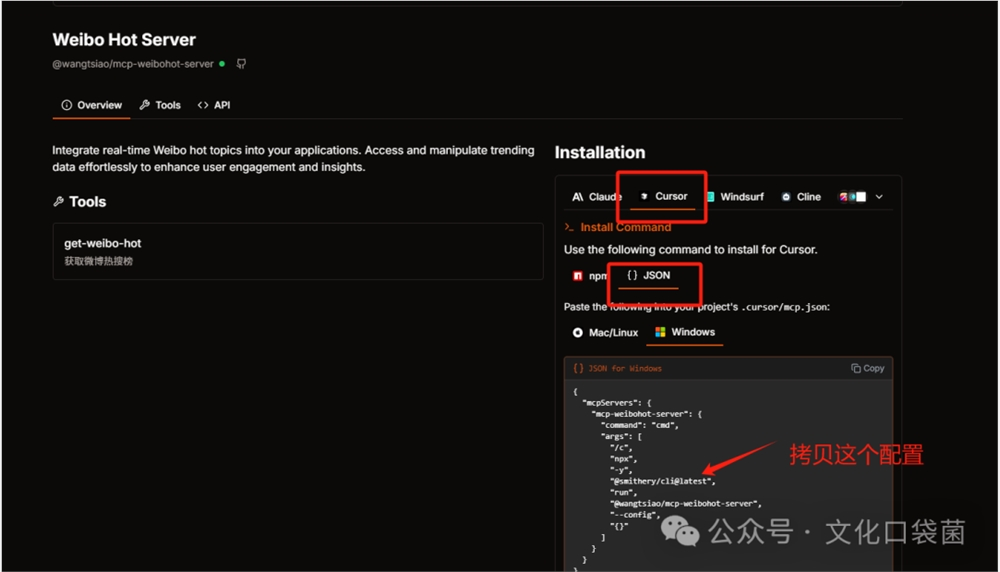
需要填写以下信息:
- Name:为MCP服务器指定一个易辨识的名称
- Transport Type:选择传输类型
stdio:标准输入输出(适用于命令行工具)sse:服务器发送事件(适用于Web服务)
- Command/URL:根据传输类型填写相应信息
- 对于
stdio类型,输入可执行命令 - 对于
sse类型,输入服务器URL
- 对于
4. 配置Web搜索MCP服务(示例)
以下是配置Web搜索MCP服务的具体步骤:
- 访问Smithery平台:https://smithery.ai,搜索"Web Research"
- 或直接访问:https://smithery.ai/server/@mzxrai/mcp-webresearch
- 在"Installation"区域找到并复制Cursor安装命令:
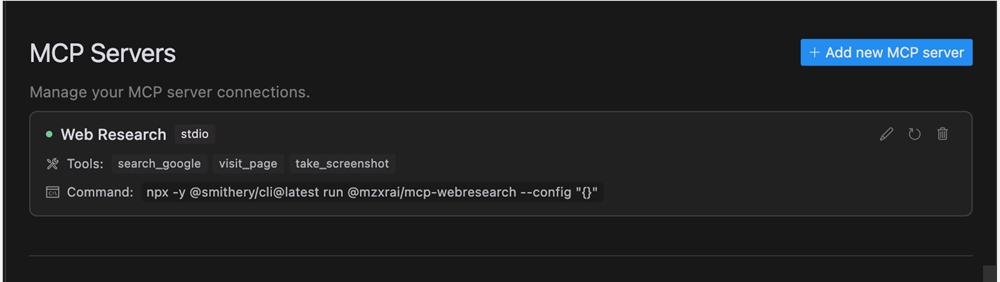
npx -y @smithery/cli@latest run @mzxrai/mcp-webresearch --config "{}"<button type="button" style="border-width: 0px; border-style: solid; border-color: oklch(0.922 0 0); padding: 0px; outline-color: oklab(0.708 0 0 / 0.5); letter-spacing: inherit; opacity: 1; border-radius: 0px;"><svg viewBox="64 64 896 896" focusable="false" data-icon="copy" width="1em" height="1em" fill="currentColor" aria-hidden="true"></svg></button> - 在Cursor的MCP设置中添加新服务器:
- 名称:Web Search
- 类型:command
- 命令:粘贴上面复制的命令
5. 验证MCP服务器状态
添加完成后,MCP服务器应显示为可用状态。成功配置的MCP服务器会在列表中显示绿色指示灯或勾号。
四、使用MCP功能
要使用已配置的MCP功能,需要注意以下几点:
1. 使用限制
重要提示:目前MCP工具并非适用于所有模型,仅在Composer中的Agent处可用。
在新版Cursor中,Composer被移至聊天框的左下角,并改名为"Edit"。
2. 测试MCP功能
打开Cursor的聊天功能,使用以下步骤测试MCP:
- 在聊天框中点击左下角的"Edit"按钮切换到Agent模式
- 输入需要使用MCP工具的查询,例如:
帮我使用Web Search查找关于MCP协议的最新信息<button type="button" style="border-width: 0px; border-style: solid; border-color: oklch(0.922 0 0); padding: 0px; outline-color: oklab(0.708 0 0 / 0.5); letter-spacing: inherit; opacity: 1; border-radius: 0px;"><svg viewBox="64 64 896 896" focusable="false" data-icon="copy" width="1em" height="1em" fill="currentColor" aria-hidden="true"></svg></button> - 观察Cursor是否调用了相应的MCP工具并返回结果
- 成功调用MCP工具时,会显示"Called MCP tool"的提示
五、常见问题及解决方法
1. MCP服务器连接失败
如果MCP服务器显示为不可用状态,请尝试以下解决方法:
- 检查环境依赖:确保Node.js、Git等必要组件已正确安装
- 终端执行命令:将MCP命令复制到系统终端中执行,查看是否有详细的错误信息
- 重启Cursor:完全关闭并重新启动Cursor
- 更新Cursor:确保使用最新版本的Cursor
2. 命令执行超时
有时MCP配置会依赖其他包环境,下载需要一定时间。如果在Cursor规定时间限制内没有完成连接就会报错,此时需要:
- 将命令复制到命令行终端
- 在终端执行成功后再回到Cursor刷新状态
3. MCP工具不显示
如果已配置的MCP工具没有在调用列表中显示,可能是因为:
- 当前不在Agent模式:确保在聊天界面中切换到Edit(原Composer)模式
- 工具列表未更新:尝试刷新MCP服务器列表
- 服务器未启动:检查MCP服务器状态是否为活跃状态
六、高级MCP配置示例
1. 思维链MCP配置
思维链MCP是一个受欢迎的MCP服务,可以帮助AI更有条理地思考问题。配置步骤如下:
使用npm安装项目:
npm install -g @modelcontextprotocol/server-sequential-thinking
<button type="button" style="border-width: 0px; border-style: solid; border-color: oklch(0.922 0 0); padding: 0px; outline-color: oklab(0.708 0 0 / 0.5); letter-spacing: inherit; opacity: 1; border-radius: 0px;"><svg viewBox="64 64 896 896" focusable="false" data-icon="copy" width="1em" height="1em" fill="currentColor" aria-hidden="true"></svg></button> 在Cursor MCP设置中添加:
名称:sequential-thinking
类型:命令
命令:
node [Node.js安装路径]/node_modules/@modelcontextprotocol/server-sequential-thinking/dist/index.js
<button type="button" style="border-width: 0px; border-style: solid; border-color: oklch(0.922 0 0); padding: 0px; outline-color: oklab(0.708 0 0 / 0.5); letter-spacing: inherit; opacity: 1; border-radius: 0px;"><svg viewBox="64 64 896 896" focusable="false" data-icon="copy" width="1em" height="1em" fill="currentColor" aria-hidden="true"></svg></button> 注意:Windows用户需要替换为实际的Node.js安装路径,例如:
node D:\Soft\nvm\v18.18.0\node_modules\@modelcontextprotocol\server-sequential-thinking\dist\index.js
<button type="button" style="border-width: 0px; border-style: solid; border-color: oklch(0.922 0 0); padding: 0px; outline-color: oklab(0.708 0 0 / 0.5); letter-spacing: inherit; opacity: 1; border-radius: 0px;"><svg viewBox="64 64 896 896" focusable="false" data-icon="copy" width="1em" height="1em" fill="currentColor" aria-hidden="true"></svg></button>
2. 文件系统MCP配置
文件系统MCP允许AI访问和操作本地文件系统,配置如下:
- 在Cursor MCP设置中添加:
名称:filesystem
类型:命令
命令:
npx -y @modelcontextprotocol/server-filesystem [项目目录路径]
<button type="button" style="border-width: 0px; border-style: solid; border-color: oklch(0.922 0 0); padding: 0px; outline-color: oklab(0.708 0 0 / 0.5); letter-spacing: inherit; opacity: 1; border-radius: 0px;"><svg viewBox="64 64 896 896" focusable="false" data-icon="copy" width="1em" height="1em" fill="currentColor" aria-hidden="true"></svg></button> 示例:
npx -y @modelcontextprotocol/server-filesystem /Users/username/Desktop/Projects/my-project
<button type="button" style="border-width: 0px; border-style: solid; border-color: oklch(0.922 0 0); padding: 0px; outline-color: oklab(0.708 0 0 / 0.5); letter-spacing: inherit; opacity: 1; border-radius: 0px;"><svg viewBox="64 64 896 896" focusable="false" data-icon="copy" width="1em" height="1em" fill="currentColor" aria-hidden="true"></svg></button>
3. SQLite MCP配置
SQLite MCP可以让AI直接查询和操作SQLite数据库,配置如下:
确保安装Python3.10+和UV工具:
pip install uv
<button type="button" style="border-width: 0px; border-style: solid; border-color: oklch(0.922 0 0); padding: 0px; outline-color: oklab(0.708 0 0 / 0.5); letter-spacing: inherit; opacity: 1; border-radius: 0px;"><svg viewBox="64 64 896 896" focusable="false" data-icon="copy" width="1em" height="1em" fill="currentColor" aria-hidden="true"></svg></button> 在Cursor MCP设置中添加:
- 名称:sqlite
- 类型:命令
- 命令:
uvx mcp-server-sqlite --db-path [数据库路径]/test.db
<button type="button" style="border-width: 0px; border-style: solid; border-color: oklch(0.922 0 0); padding: 0px; outline-color: oklab(0.708 0 0 / 0.5); letter-spacing: inherit; opacity: 1; border-radius: 0px;"><svg viewBox="64 64 896 896" focusable="false" data-icon="copy" width="1em" height="1em" fill="currentColor" aria-hidden="true"></svg></button>
总结
通过本教程,我们详细介绍了Cursor编辑器的安装步骤和MCP服务的配置方法。MCP协议的出现为AI工具提供了强大的扩展能力,使Cursor不仅是一个代码编辑器,更成为了一个功能丰富的AI开发环境。
随着MCP生态的不断发展,越来越多的服务将被接入,进一步增强Cursor的功能。希望本教程能帮助您快速上手Cursor和MCP,提高开发效率。
记住,在使用MCP功能时,一定要在Cursor的Composer/Edit模式下操作,这样才能成功调用MCP工具。如果遇到问题,可以尝试本教程中提供的常见问题解决方法,或查阅官方文档获取更多支持。
参考资料
- Cursor官方网站
- MCP官方文档
- Cursor MCP设置指南
- Smithery MCP服务目录
祝您在AI辅助编程的道路上取得成功!
相关文章






助力用户高效自动化任务,提升工作效率。

关注我们
 闽公网安备35020302036513号